Corgi Easter Egg Discovered While Analyzing Gemini CLI Source Code
- 60% of this article was written manually, 40% by AI.
- Claude Code and Gemini CLI helped significantly with the source code walkthrough.
- Analyzed Gemini CLI version is v0.1.5.
I’m Oikon. I work as an IT engineer at a foreign company.
Sorry for the silly title (this wasn’t originally the plan).
Gemini CLI was released by Google on June 25, 2025.
Since Gemini CLI is released as OSS, I decided to walk through the source code for learning.
My original goals were:
- Understand how modern CLI tools are built
- Learn how they control context
- Investigate how Google’s signature Web Search is integrated
However, while examining the source code, I discovered a hidden /corgi command, hence this article title.
In this article, I’ll properly focus on the original goals.
Investigation Method
I used Claude Code and Gemini CLI for the Gemini CLI walkthrough.
- Understanding the entire codebase
- Documenting specifications
- Cross-reviewing documents
These tasks were done alternating between Claude Code and Gemini CLI.
I personally felt “cross-reviewing documents” worked quite well. Claude Code would write specification explanations, Gemini CLI would review if it’s correct, and Claude Code would verify if that review is valid.
Perhaps thanks to Gemini CLI’s large context size, it seemed good at understanding code as a whole. The task of “reading code and summarizing” may be well-suited. When walking through other projects, I’m thinking of having Gemini CLI write the first draft of documentation.
Claude Code still seems stronger at understanding implementations. I feel this when actually having it write code. Detailed explanation of implementation logic seems to be Claude Code’s strength.
I’ll also paste the investigation report gist (not sure if it’s useful):
Architecture
gemini-cli/
├── packages/
│   ├── cli/                    # User interface layer
│   │   ├── src/
│   │   │   ├── gemini.tsx      # Main entry point
│   │   │   ├── ui/
│   │   │   │   ├── App.tsx     # Root UI component
│   │   │   │   ├── components/ # React/Ink components
│   │   │   │   ├── hooks/      # Custom React hooks
│   │   │   │   └── themes/     # Theme definitions
│   │   │   ├── config/         # Configuration management
│   │   │   └── utils/          # Utility functions
│   │   └── package.json
│   │
│   └── core/                   # Business logic layer
│       ├── src/
│       │   ├── config/         # Configuration management
│       │   │   ├── config.ts   # Central configuration class
│       │   ├── core/           # Core client implementation
│       │   │   ├── client.ts   # GeminiClient
│       │   │   ├── geminiChat.ts
│       │   │   └── turn.ts
│       │   ├── tools/          # Tool implementations
│       │   │   ├── tools.ts    # Base class
│       │   │   ├── edit.ts
│       │   │   ├── shell.ts
│       │   │   └── mcp-*.ts    # MCP integration
│       │   ├── services/       # Various services
│       │   ├── telemetry/      # Monitoring features
│       │   └── utils/          # Common utilities
│ └── package.jsonThe folder tree was created by Claude Code.
As you can see, it’s a clear monorepo structure. Let’s briefly look at the cli and core components.
cli Component

The cli component is Gemini CLI’s user interface layer.
The rich CLI interfaces of Claude Code and Gemini CLI are thanks to Ink, a React custom renderer library.
For details on React Ink, see this article if you’re interested:

cli components I’d particularly highlight:
gemini.tsx: Main entry point for the CLI application. Handles initialization and configuration for the entire application including loading settings, starting sandbox, memory management.ui/App.tsx: Main component for interactive CLI using ink library. Implements major UI-related functions including user input processing, command history management, displaying streaming responses from Gemini.utils/sandbox.ts: Provides functionality to manage sandbox environments for security and isolation. Contains logic for safely executing commands using Docker or macOS Seatbelt (sandbox-exec).ui/hooks/slashCommandProcessors: Component that manages slash commands. Looking here shows what slash commands exist.
core Component
The core component handles so-called business logic.
Features include Gemini Client, Google Search, MCP server handling, etc. Tools themselves were neatly organized in tools/.
core components I’d particularly highlight:
services/gemini.ts: Handles communication with Google’s Gemini API. Sends user input and tool execution results to the API and receives responses (text and tool call requests) from the model. Abstracts complex authentication (OAuth and API keys) processing.config/config.ts: Central configuration manager for the entire application. Centrally manages all settings that determine CLI behavior as a Config class, including API keys, models to use, sandbox presence, enabled tools.tools/*: Backend tools. Individual feature implementations like Read, WebSearch, MCP-tool are contained here.
Features
Here I’ll introduce the 2 features I originally planned to investigate, plus the /corgi mode I accidentally discovered.
- Google Web Search
- Context
/corgiMode
1. Google Web Search

Google Web Search (WebSearch tool) is a tool that generates reliable responses based on web search results by utilizing Gemini API’s grounding functionality (googleSearch).
This tool doesn’t directly process raw Google search results, but performs search, summarization, and citation through Gemini API’s internal functionality.
Basically it’s like “search and use those results directly”. This is why Gemini CLI sometimes feels lacking for searching for necessary information.
This has also been mentioned on 𝕏:
Search Processing Flow
// Simplified processing flow
1. Receive user query
   ↓
2. Request to Gemini API specifying googleSearch tool
   const response = await geminiClient.generateContent(
     [{ role: 'user', parts: [{ text: params.query }] }],
     { tools: [{ googleSearch: {} }] },  // Grounding specification
     signal,
   );
   ↓
3. Gemini API internally:
   - Executes Google search
   - Analyzes and summarizes search results
   - Generates grounding information (citations)
   ↓
4. WebSearch tool processes response:
   - Extract citation position info from groundingSupports
   - Insert citation numbers [1], [2] at exact positions in text
   - Generate source list from groundingChunks
   ↓
5. Return formatted results to userProcessing flow was created by Claude Code.
2. Context
Context processed by Gemini CLI can be categorized as in the following table:
| Element | Content | Processing Program (Tool) | Token Impact |
|---|---|---|---|
| Basic Info | Environment info like user’s OS, current datetime, current directory. | (Initialized internally by CLI) | Small |
| Filesystem Info | File/directory lists obtained with ls or glob. | list_directory, glob | Medium |
| File Contents | File contents actively read with read_file or search_file_content. | read_file, read_many_files, search_file_content | Large |
| Command Execution Results | Standard output/error from run_shell_command. | run_shell_command | Medium~Large |
| Web Search Results | Answers searched, summarized, and generated by google_web_search from the Web. | google_web_search | Medium |
| Conversation History | Recent exchanges between user and Gemini. | (Chat engine) | Medium |
| System Prompt | Instructions defining Gemini’s role and behavior norms, like those in GEMINI.md. | (Read internally by CLI) | Medium |
Table was created by Gemini CLI.
Looking at the table, you can see tool-based actions tend to consume tokens. Generally, giving specific processing instructions is to reduce wasteful token consumption and keep context clean. I confirmed this necessity in Gemini CLI as well.
Token Limit
The default token limit is 1 million tokens (1M), which is large compared to Claude Code. I think this is a major advantage of using Gemini.
I could also see from the source code that there are token limit differences by model.
export const DEFAULT_TOKEN_LIMIT = 1_048_576;

export function tokenLimit(model: Model): TokenCount {
  // Add other models as they become relevant or if specified by config
  // Pulled from https://ai.google.dev/gemini-api/docs/models
  switch (model) {
    case 'gemini-1.5-pro':
      return 2_097_152;
    case 'gemini-1.5-flash':
    case 'gemini-2.5-pro-preview-05-06':
    case 'gemini-2.5-pro-preview-06-05':
    case 'gemini-2.5-pro':
    case 'gemini-2.5-flash-preview-05-20':
    case 'gemini-2.5-flash':
    case 'gemini-2.0-flash':
      return 1_048_576;
    case 'gemini-2.0-flash-preview-image-generation':
      return 32_000;
    default:
      return DEFAULT_TOKEN_LIMIT;
  }
}
//"Code excerpts Copyright © Google under Apache‐2.0"
3. /corgi Mode

I discovered this while walking through Gemini CLI code.
When you type the /corgi slash command, a corgi appears in the footer’s bottom right.
When Claude Code created a slash command table for me, there was a mysterious /corgi command at the end, and I thought “Huh?? What’s this??”
Slash command table generated by Claude Code:
| Command | Description |
|---|---|
/help or /? | Show help |
/docs | Open complete Gemini CLI documentation in browser |
/clear | Clear conversation history (Ctrl+L also works) |
/theme | Theme selection dialog |
/auth | Change authentication method |
/stats | Show usage statistics |
/memory | Memory management (add/show/refresh) |
/tools | Available tools list |
/mcp | MCP server list and status |
/compress | Manually compress conversation |
/bug <description> | Submit bug report |
/about | Show version info and system details |
/chat | Conversation history management (list/save/load/resume/delete) |
/restore [tool_call_id] | Restore from checkpoint (requires —checkpointing) |
/quit | Exit Gemini CLI (exit or Ctrl+D also works) |
/editor | Open editor settings dialog |
/corgi | Easter egg (🐕) |
Command table was created by Claude Code.
It’s an Easter egg-type hidden element.
Actually looking at the slash command code:
{
    name: 'corgi',
    action: (_mainCommand, _subCommand, _args) => {
      toggleCorgiMode();
    },
  },
//"Code excerpts Copyright © Google under Apache‐2.0"
Diving deeper into corgiMode, it’s expressed with React Ink Text like this:
{corgiMode && (
  <Text>
    <Text color={Colors.Gray}>| </Text>
    <Text color={Colors.AccentRed}>▼</Text>
    <Text color={Colors.Foreground}>(´</Text>
    <Text color={Colors.AccentRed}>ᴥ</Text>
    <Text color={Colors.Foreground}>`)</Text>
    <Text color={Colors.AccentRed}>▼ </Text>
  </Text>
)}
//"Code excerpts Copyright © Google under Apache‐2.0"
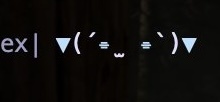
A very simple implementation. For example, you could replace it with a “Frieren who failed at something”:
{corgiMode && (
    <Text>
        <Text color={Colors.Gray}>| </Text>
        <Text color={Colors.AccentBlue}>▼</Text>
        <Text color={Colors.Foreground}>(´</Text>
        <Text color={Colors.AccentBlue}>⌯</Text>
        <Text color={Colors.Foreground}> ̫ </Text>
        <Text color={Colors.AccentBlue}>⌯</Text>
        <Text color={Colors.Foreground}>`)</Text>
        <Text color={Colors.AccentBlue}>▼ </Text>
    </Text>
)}
Frieren who failed at something:
I personally find these playful elements quite fun and interesting.
Summary
I walked through Gemini CLI. Finding the easter egg /corgi mode was lucky.
I feel that being able to look at OSS code with AI agents has made overall understanding easier than before. Detailed implementations can be checked in the Gemini CLI repository, so please check it out if you’re interested.
Personally, Gemini CLI is quite a good CLI tool that you can use for free. Let’s make full use of it!
Follow Me on 𝕏!
I also share information on 𝕏, so I’d appreciate it if you followed me!

References
Gemini CLI:
React Ink Rich CLI (The thing behind Claude Code):
Simple Gemini CLI Tutorial:
