CodeRabbit CLI Review and Claude Code Integration
I’m Oikon.
Recently, CodeRabbit CLI was released by CodeRabbit.
The CLI tool trend has been spreading with Claude Code, Codex CLI, Gemini CLI, etc., and CodeRabbit has also released their CLI tool.
What differs from other CLI tools is that CodeRabbit CLI is a CLI tool specialized for code review. Since CodeRabbit itself was originally a tool for code review on pull requests (PRs) in GitHub or GitLab, releasing a code review-specialized tool makes sense.
Overview of the CodeRabbit CLI tool:
- Review-specialized CLI tool
- Requires git
- Has rate limits
- Mainly for headless invocation
- Can integrate with Claude Code, Codex, Cursor
This article introduces an overview of CodeRabbit CLI and how to integrate it with other CLI tools like Claude Code.
This article provides more details based on the X post above.
CodeRabbit Overview
CodeRabbit for PR Review
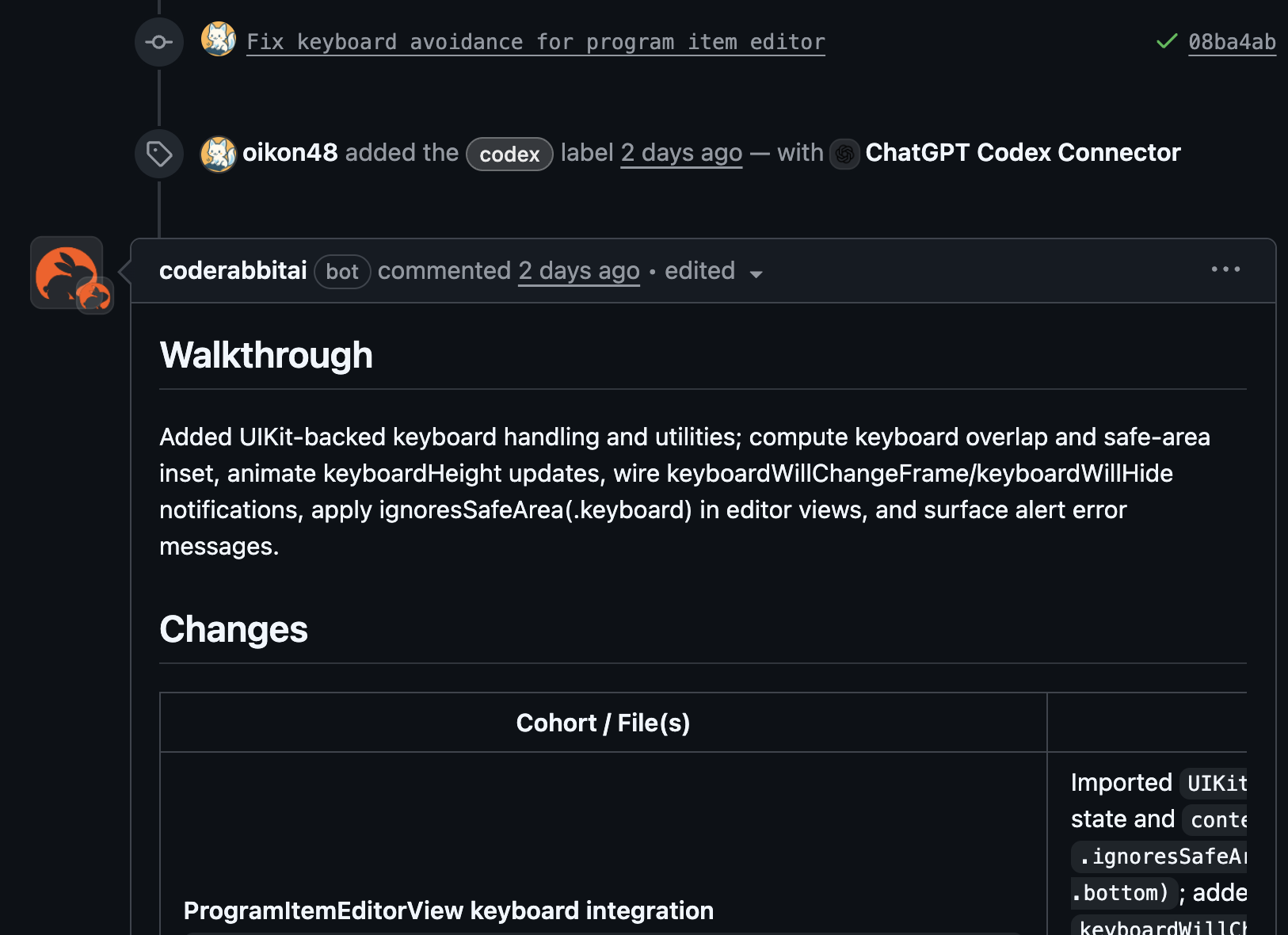
CodeRabbit is known as an AI tool that automatically reviews on GitHub PRs.
In recent years, while AI development tools have accelerated development processes, human code reviews have been becoming bottlenecks. CodeRabbit provides AI-specialized code review functionality. Having CodeRabbit do the First Review can reduce developers’ code review burden.
You can also use @coderabbitai on PRs to ask questions or comment, proceeding through the review process like talking to a reviewer.
It’s free for public repositories, so try it if you haven’t.
CodeRabbit CLI
CodeRabbit CLI is a review-specialized CLI tool released on September 16, 2025.
CodeRabbit CLI brings GitHub PR review capabilities directly to a CLI tool for local project use.
Installation is as follows. Content is based on official documentation:

1. Install
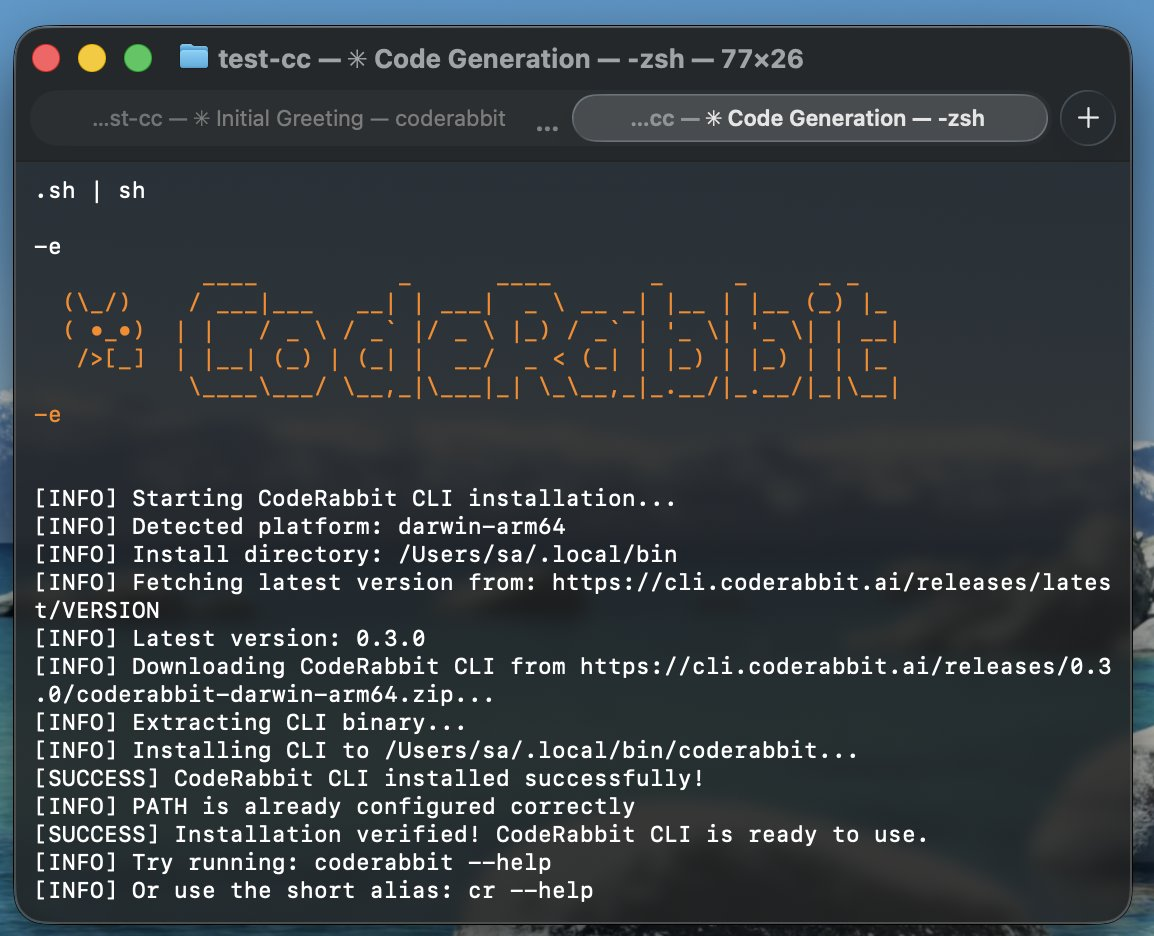
curl -fsSL https://cli.coderabbit.ai/install.sh | sh2. Restart shell
source ~/.zshrc3. Authentication
coderabbit auth loginBrowser authentication is required only the first time.
You can also use cr as an alias for coderabbit.
CodeRabbit CLI has two ways to use it:
- Using CodeRabbit CLI standalone
- Using CodeRabbit CLI with other CLI tools
Let’s look at each in detail.
Using CodeRabbit CLI Standalone
First, let me introduce standalone CodeRabbit CLI usage.
As a prerequisite, it won’t start unless in a git-managed project directory. Furthermore, there’s little point in starting if there are no differences in the project directory.
This is probably because CodeRabbit as a tool references git diffs to perform code reviews.
In a git-managed project directory, running coderabbit or cr will show a startup screen like this:
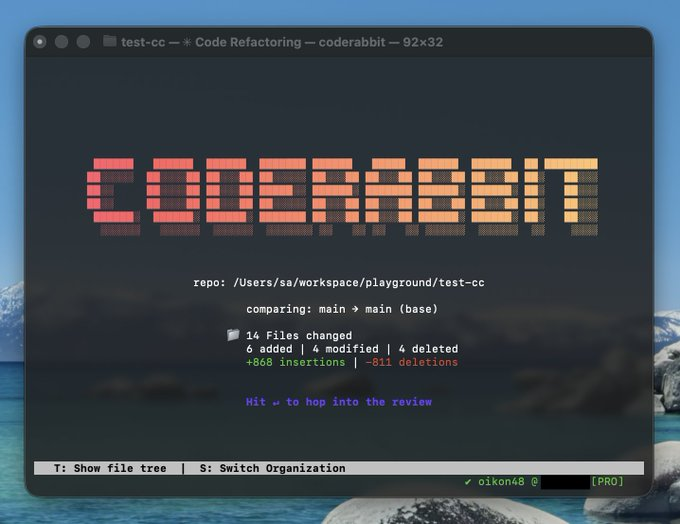
As you can see from the image, it’s getting current branch and code changes from git.
Pressing Enter from the startup screen shows the analysis screen:
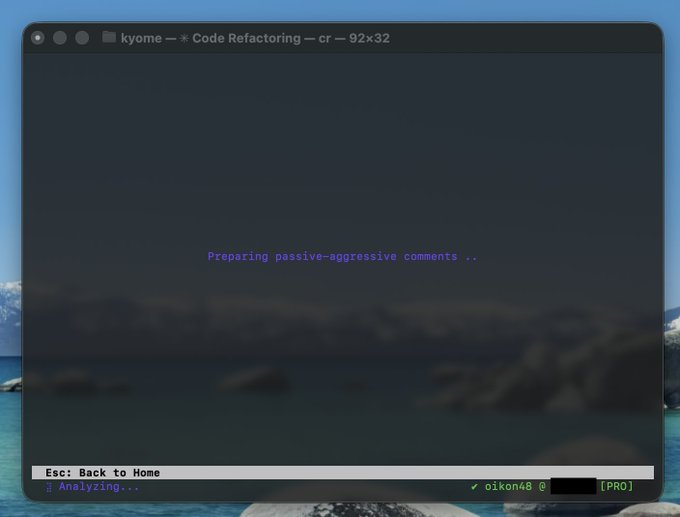
Nothing to do on the analysis screen. Wait for analysis to complete.
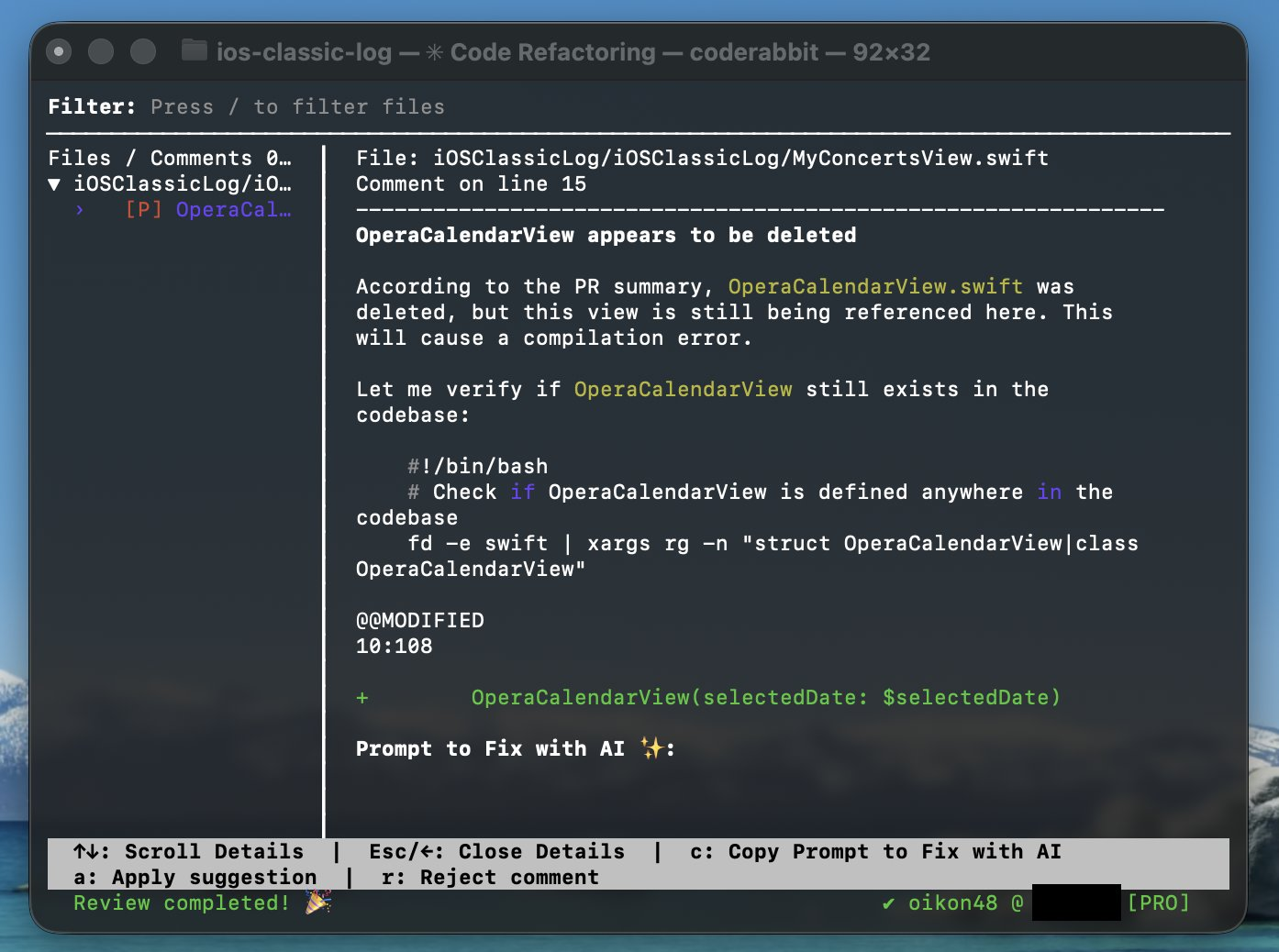
When all code analysis is complete, it shows review results. As shown in the image above, problematic filenames and review results are displayed.
If there are points to change from the review:
a: Apply suggestionc: Copy Prompt to Fix with AIr: Reject comment
These options are available.
Since the original GitHub PR CodeRabbit provided change acceptance on PRs and change prompts for AI tools, these features are available in the CLI tool as well.
I’ve introduced standalone CodeRabbit CLI usage so far, but the feature CodeRabbit wants you to use is probably using CodeRabbit CLI with other company’s CLI tools, which I’ll introduce next.
Using CodeRabbit CLI with Other CLI Tools
CodeRabbit CLI was created with integration with other CLI tools in mind.
- Claude Code
- Codex CLI
- Gemini CLI
- Cursor
Integration is possible with any AI tool, not limited to the above.
CodeRabbit CLI uses headless mode invocation for integrating with other AI tools. There are mainly 2 modes:
--prompt-only: For AI tool integration, simple--plain: For CI logs etc., detailed
By having tool AI agents execute CodeRabbit CLI with these mode options, review content can be directly reflected in the AI agent’s context.
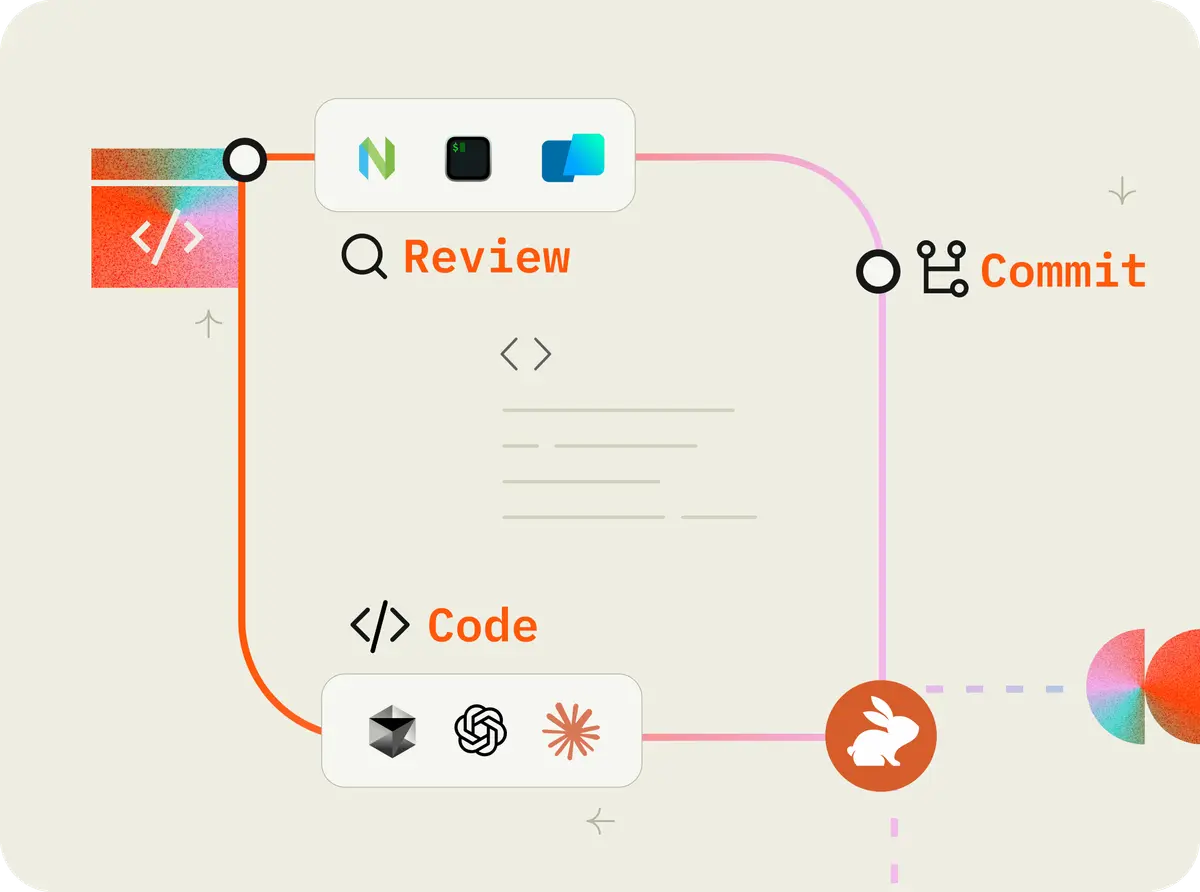
For example, you can use it as a Claude Code prompt like this:
Implement XX feature. Run coderabbit --prompt-only as a background task to receive reviewsFor AI tools like Claude Code that can use Background Tasks, you can have CodeRabbit CLI review in the background while proceeding with implementation, and immediately reflect CodeRabbit CLI review results in the codebase.
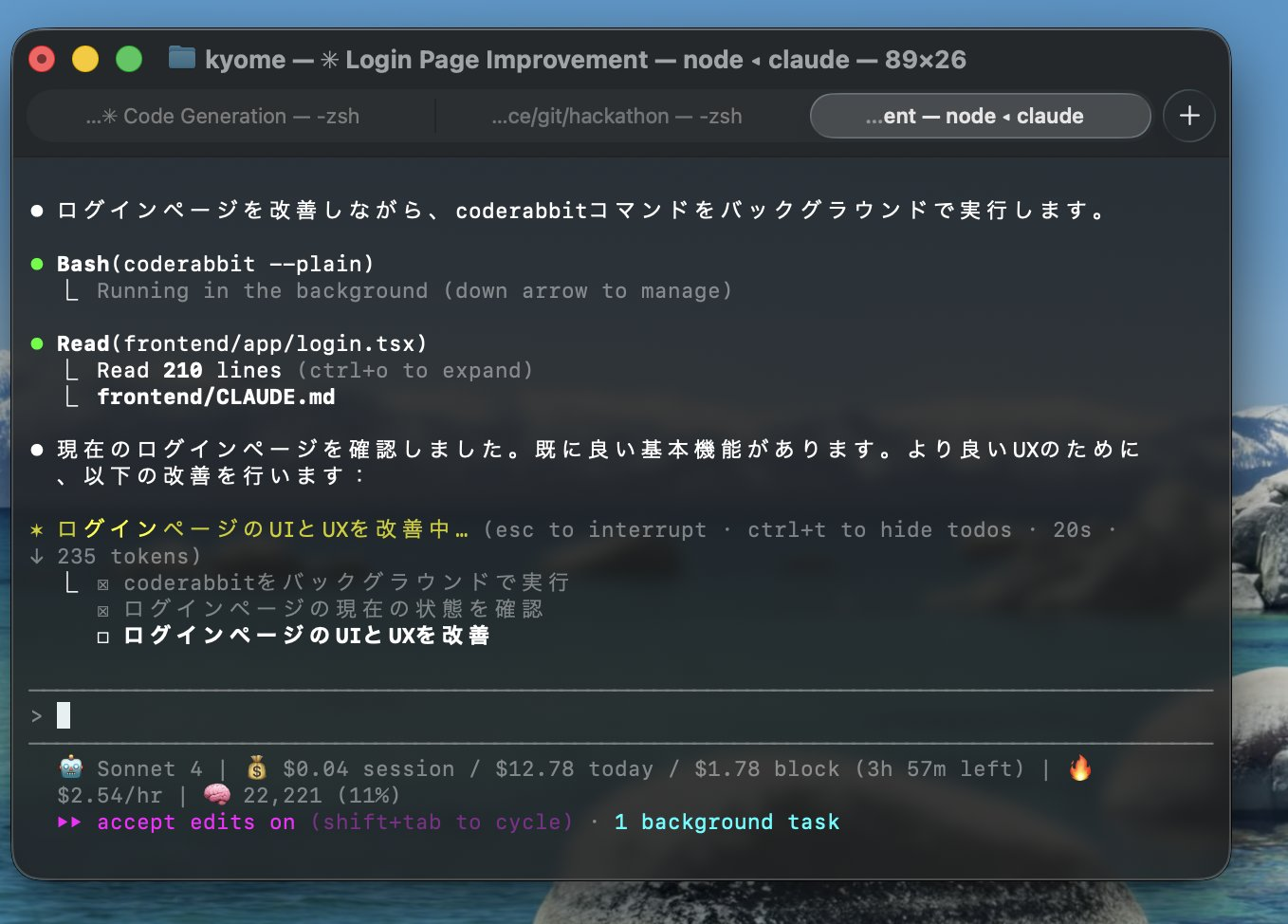
In the image above, you can see CodeRabbit CLI running as a Claude Code Background Task. For AI tools other than Claude Code, if you instruct calling CodeRabbit CLI headlessly via prompt, similar things are possible.
The following video is easy to understand for CLI tool integration, so check it out:
Impressions from Actually Using CodeRabbit CLI
I actually tried using CodeRabbit CLI with AI tools. Since I mainly use Claude Code and CodeRabbit’s official video also introduces Claude Code integration, I used it with Claude Code.
I tried several ways to use CodeRabbit CLI with Claude Code:
- Instruct
coderabbit --prompt-onlyin prompt - Make it a custom slash command
- Have Subagent call CodeRabbit CLI
- Save review content to file and read it
Method 1 is introduced in the official video. You can have CodeRabbit CLI review in the background while Claude Code is implementing. Since typing coderabbit --prompt-only every time is tedious, you might want to register it in your dictionary or write it in CLAUDE.md project memory.
Method 2 is something I personally tried. Since custom slash commands allow prompt reuse and externalization, making the CodeRabbit CLI review process itself a command is also an option.
For simply asking CodeRabbit CLI for a review, you could create a custom slash command like this:
# run coderabbit CLI $ARGUMENTS

Just run following in the background task. Do not execute the other commands.

If $ARGUMENTS is prompt (default)

\```bash
coderabbit --prompt-only
\```

If $ARGUMENTS is plain

\```bash
coderabbit --plain
\```
For method 3, I also tried Subagent. This personally didn’t work well. While Subagents can also run background tasks, there were cases where Claude Code waited for Subagent task completion, so I’ll mainly use methods 1 and 2.
Method 4 is saving CodeRabbit CLI review results to text and reading them.
cr --plain > ./doc/review.mdThis method is primitive, but the advantage is being able to determine AI tool review timing yourself and documenting it.
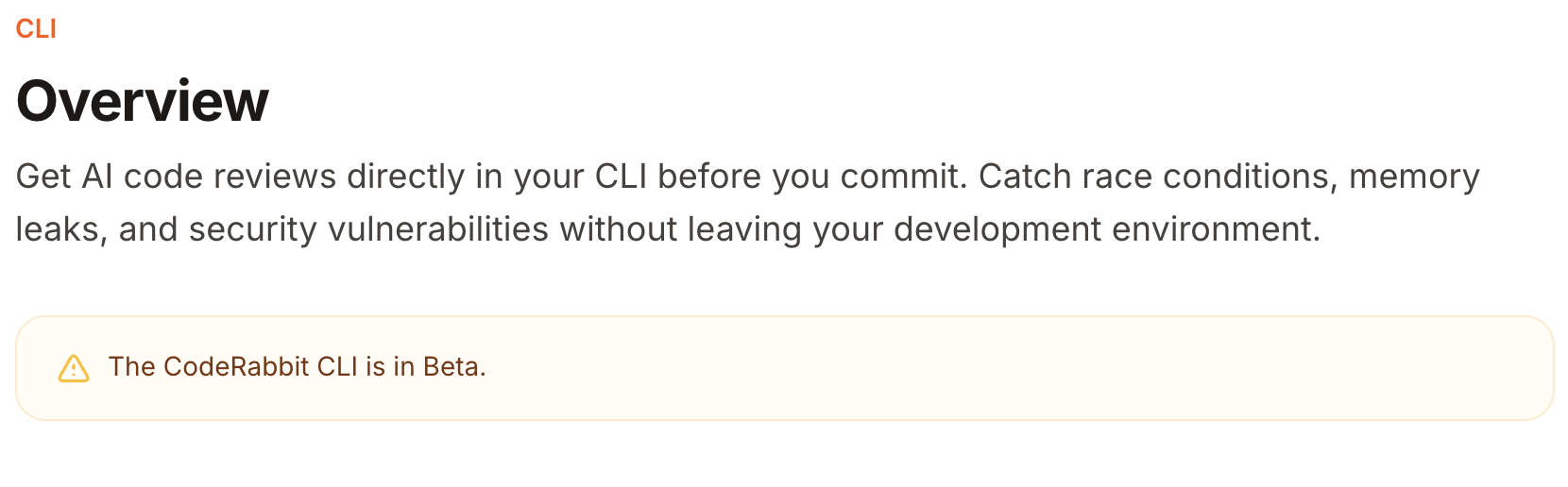
Integration with other CLI tools is easy with CodeRabbit CLI’s headless mode, but since CodeRabbit’s review completion timing is unpredictable, I felt considerable difficulty running it simultaneously with AI agent implementation like Claude Code. However, CodeRabbit CLI is written as Beta release, so I expect seamless integration with other AI tools in the future.
Rate Limits
CodeRabbit CLI has rate limits.
I’m using the Lite plan ($12/Month), and with frequent use, I hit rate limits fairly quickly.
You can see when rate limits are lifted by starting coderabbit.
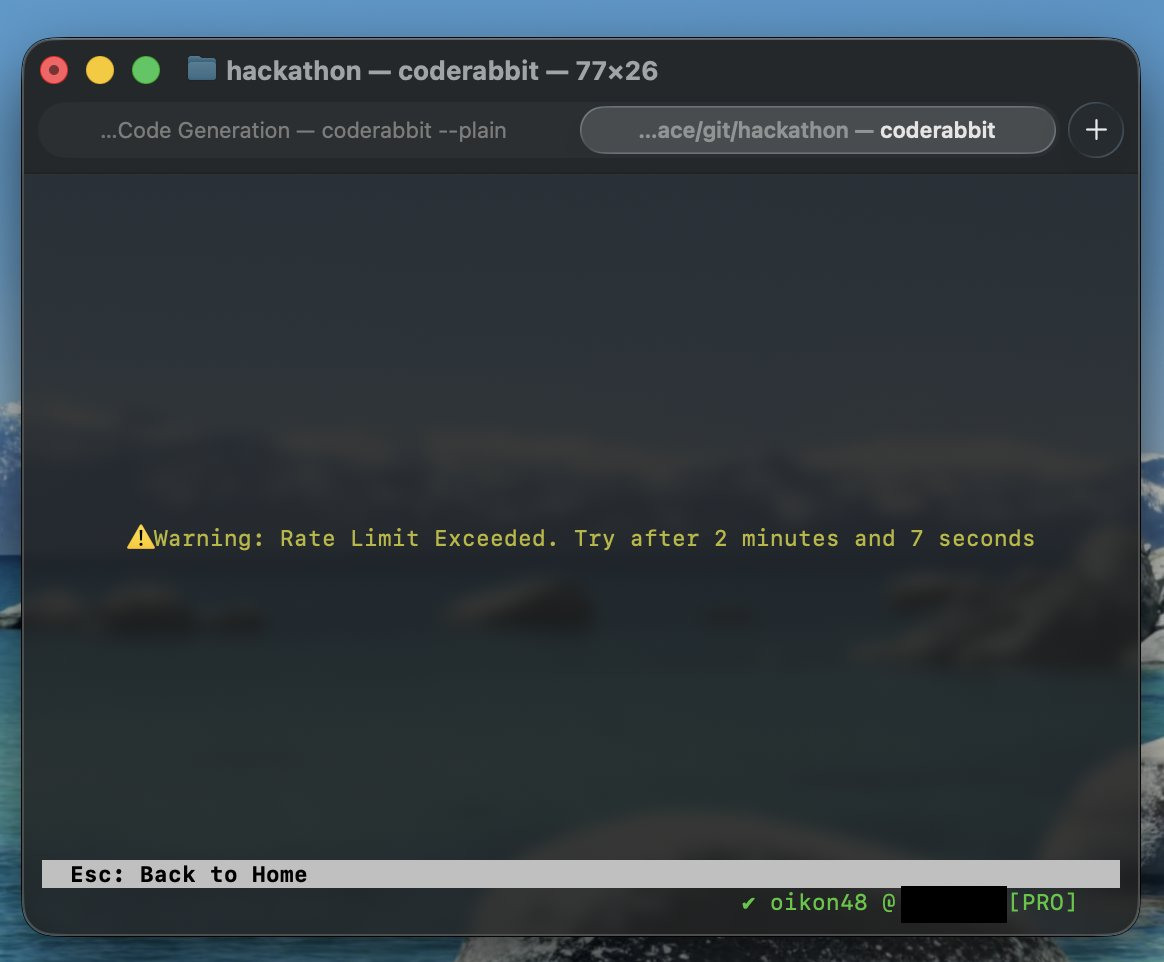
As shown in the image above, even when hitting rate limits, they’re lifted in a few minutes (image shows 2 minutes 7 seconds). The longest was about 8 minutes.
Rather than running CodeRabbit CLI reviews every time, running it when implementation has progressed to some extent seems less likely to hit rate limits.
Summary
I actually used CodeRabbit CLI since CodeRabbit beta-released it.
CodeRabbit CLI’s characteristic is that by using it with other AI tools like Claude Code and Cursor, review content can be directly fed back to AI agent context.
Headless mode invocation with coderabbit --prompt-only has some overhead, but being a CLI tool makes it easy to integrate with other tools.
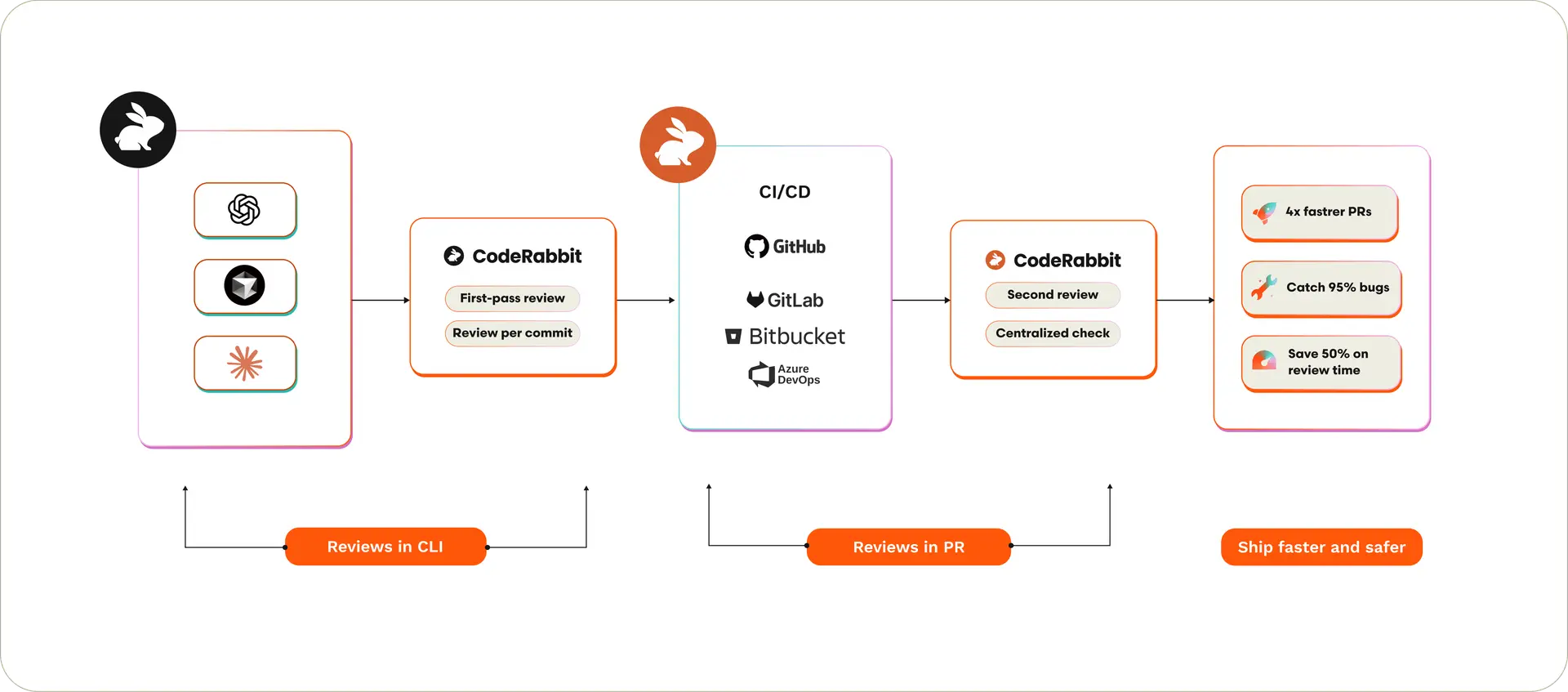
CodeRabbit seems conscious of integrating into the review process from local to remote, so if you’ve used CodeRabbit before, give it a try. CodeRabbit CLI is still beta, so it should become even more usable in the future.
Follow Me on X
I also share information on X, so I’d appreciate it if you followed me!

References