I Tried All Claude Code Slash Commands - A Complete Guide
- Claude Code version is 1.0.6
- Command = Slash Command for the purposes of this article
- Only the Command table was created using Anthropic’s Claude Opus 4 Everything else is based on documentation and manual work.
This is my first post.
I’ve been using Claude Code since around early April, and when I started sharing information for beginners, I got a good amount of engagement.
There are things I couldn’t fully cover on 𝕏 (formerly Twitter), so I decided to post on Zenn.
This content is aimed at Claude Code beginners, so please bear with me.
Also, I touch on Custom Commands at the end, so please check that out.
What is Claude Code Slash Command?
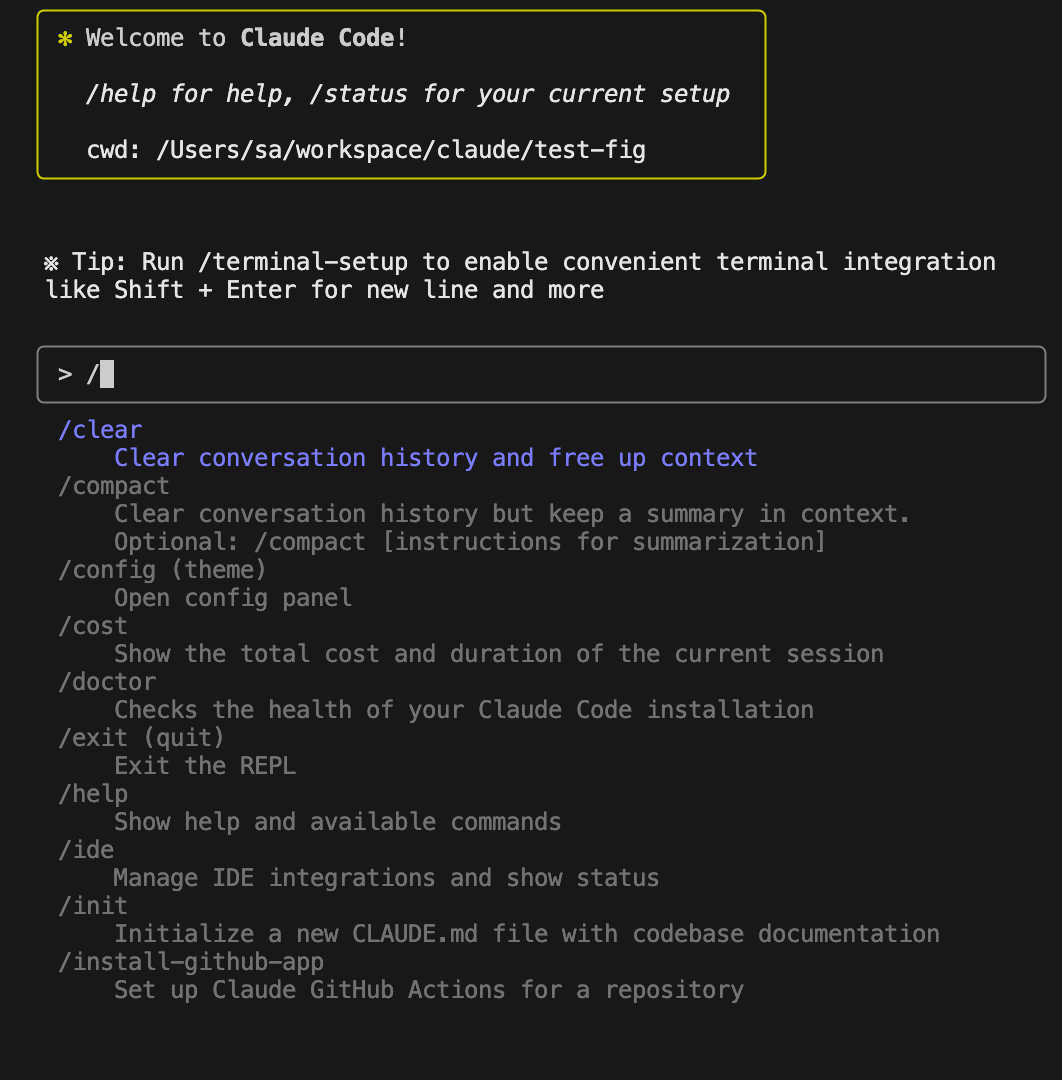
Claude Code is originally a CLI tool, and commands are available. Recently, IDE integration with VSCode, Cursor, and others became possible, but the basic functionality is the same.
After launching Claude Code with the claude command, you can use pre-assigned commands by typing / (slash). This is called Claude Code Slash Command.
This article compiles what I’ve tried with the / (slash) commands.
There were some specifications not detailed in the official documentation, so I hope some parts will be helpful.
Anthropic official documentation:
Claude Code Slash Command List

This is a table of slash commands assigned to Claude Code as of May 29, 2025.
In addition to those listed in Anthropic’s official documentation cli-usage, I’ve listed everything that can be executed from Claude Code, including things like /install-github-app written on other pages.
I’ll introduce each command one by one. There are many, so it’s fine to just look at the commands that interest you.
/allowed-tools

Displays bash commands and such that are allowed/denied for Claude Code. The contents are from settings.json under .claude.
Example of .claude/settings.local.json:
{
  "permissions": {
    "allow": [
      "Bash(ls:*)",
      "Bash(npm init:*)",
      "Bash(npm install:*)",
      "Bash(mkdir:*)",
      "Bash(npm start)",
      "Bash(npm run dev:*)",
      "WebFetch(domain:docs.anthropic.com)",
      "Bash(git init:*)",
      "Bash(git add:*)",
      "Bash(git commit:*)",
      "Bash(gh repo create:*)",
      "Bash(brew:*)",
      "Bash(gh auth:*)",
      "Bash(git push:*)",
      "WebFetch(domain:github.com)",
      "Bash(gh pr view:*)",
      "Bash(gh pr list:*)"
    ],
    "deny": []
  },
  "enableAllProjectMcpServers": false
}
When you select Add new rules or grant execution permission during Claude Code execution, executable commands are added to this file.
/bug
Bug report to Anthropic. Basically not used. If you need to report a bug, you can write bug details below “Describe the issue below:” and submit.
/clear
A command that completely clears the context window. Used quite often.
Even though Claude Opus 4 has become excellent, it sometimes starts throwing errors when conversations get long, so I often use this to reset.
By the way, even if you use /clear to reset the context window, you can restore the conversation using the claude -resume startup option.
/compact [instructions]
A command that compresses the context window contents.
While /clear resets all conversation history, /compact compresses and retains the content for future conversations.
You can write instructions for “what to focus on when compressing and retaining data” as an argument.
In the default settings, /compact is automatically triggered when the context window gets large enough. This can be toggled ON/OFF with the /config command described later.
/config (or /theme)
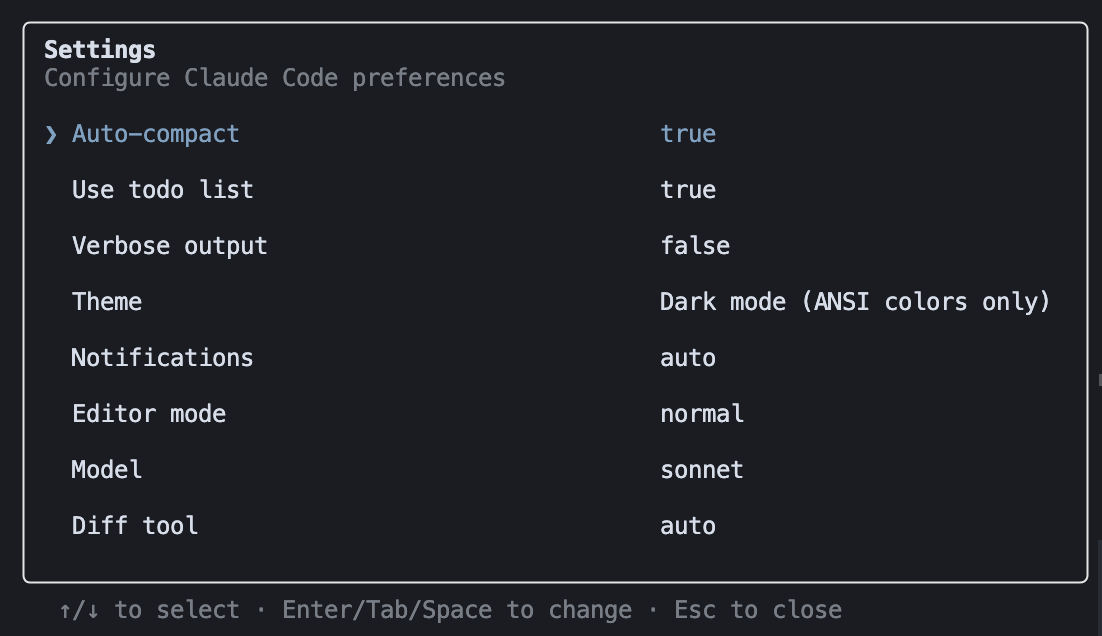
You can configure various Claude Code settings. The image above shows all defaults except for Theme.
The configurable options may vary by version, so they may differ from the image.
| Options | Values (bold is default) | Description |
|---|---|---|
| Auto-compact | true, false | Whether to auto /compact |
| Use todo list | true, false | Whether Claude Code creates a TODO list when executing commands |
| Verbose | true, false | Whether to show detailed logs |
| Theme | 6 types | Theme settings |
| Notifications | auto, iterm2, terminal_bell, iterm2_with_bell, kitty, notifications_disabled | Notification settings when tasks complete |
| Editor mode | normal, vim | Whether to use Vim mode |
| Model | Default(recommended), Sonnet | AI model settings (same as /model) |
| Diff tool | auto, terminal | How to display code differences |
/cost
Shows Claude Code pricing. The display varies by plan, so it’s a good indicator of which one you’re logged in with.
Max Plan subscribers:
/cost
  ⎿ With your Claude Max subscription, no need to monitor
    cost — your subscription includes Claude Code usage
API billing users:
/cost
  ⎿ Total cost:            $0.0061
    Total duration (API):  2.2s
    Total duration (wall): 42.6s
    Total code changes:    0 lines added, 0 lines removed
    Token usage by model:
        claude-3-5-haiku:  7.5k input, 16 output, 0 cache
    read, 0 cache write
/doctor
You can check if Claude Code is installed correctly.
If you have issues with Claude Code, run the /doctor command.
If there are no problems, you’ll see text like this:
 ※ Tip: Use /theme to change the color theme
 ✓ npm permissions: OK
 Your installation is healthy and ready for auto-updates.

 You can also install Claude Code locally to avoid npm
 permission issues using the slash command:

   /migrate-installer
/exit or (/quit)
Ends the Claude Code session.
You can also exit by pressing Ctrl-c twice.
/help
Displays command help. This is for after Claude Code is started, so check startup commands with claude -h.
In Claude Code version 1.0.6, it displays as follows:
 ※ Tip: Press Shift+Enter to send a multi-line message

 Claude Code v1.0.6

 Always review Claude's responses, especially when running
 code. Claude has read access to files in the current
 directory and can run commands and edit files with your
 permission.

 Usage Modes:
 • REPL: claude (interactive session)
 • Non-interactive: claude -p "question"

 Run claude -h for all command line options

 Common Tasks:
 • Ask questions about your codebase > How does foo.py work?
 • Edit files > Update bar.ts to...
 • Fix errors > cargo build
 • Run commands > /help
 • Run bash commands > !ls

 Interactive Mode Commands:
  /allowed-tools - List all currently allowed tools
  /bug - Submit feedback about Claude Code
  /clear - Clear conversation history and free up context
  /compac - Clear conversation history but keep a summary in
         context. Optional: /compact [instructions for
         summarization]
  /config - Open config panel
  /cos - Show the total cost and duration of the current
      session
  /doctor - Checks the health of your Claude Code installation
  /exit - Exit the REPL
  /help - Show help and available commands
  /ide - Manage IDE integrations and show status
  /init - Initialize a new CLAUDE.md file with codebase
       documentation
  /install-github-a - Set up Claude GitHub Actions for a
  p                repository
  /login - Sign in with your Anthropic account
  /logout - Sign out from your Anthropic account
  /mcp - Show MCP server connection status
  /memory - Edit Claude memory files
  /migrate-install - Migrate from global npm installation to
  r               local installation
  /model - Set the AI model for Claude Code
  /pr-comments - Get comments from a GitHub pull request
  /release-notes - View release notes
  /review - Review a pull request
  /status - Show Claude Code status including version, model,
         account, API connectivity, and tool statuses
  /terminal-setu - Install Shift+Enter key binding for
                newlines
  /vim - Toggle between Vim and Normal editing modes

 Learn more at: https://docs.anthropic.com/s/claude-code
/ide

This is the recently added IDE integration feature. You can connect with VSCode, Cursor, etc.
When I did it with VSCode, I could connect without particularly using this command, but I’m not sure why…
/init

Creates the Claude Code configuration file CLAUDE.md.
For existing projects, it scans the project and checks configuration files:
- package.json
- README.md
- App.tsx
- tsconfig.json
- jest.config.js
- App.test.tsx
In addition to these project configuration files, it also looks for AI editor rules:
- .cursorrules
- .cursor/rules
- .github/copilot-instructions.md
CLAUDE.md can be edited like other configuration files.
/install-github-app
A command to enable Claude Code GitHub Actions for GitHub repositories.
Explaining what GitHub Actions is would take too long, so I’ll skip it. Roughly speaking, if you mention @claude in GitHub Issues or Pull Requests and give an instruction, Claude will execute it appropriately. Very convenient.
Basically, just follow the instructions from /install-github-app, but I’ll leave the details to other articles.
/login

Log in to your account. You can execute it even if already logged in, and in that case, you’ll be taken to the login method selection screen above.
/logout
Sign out. Executing this ends the session and returns you to the terminal.
/mcp
Manages Model Context Protocol (MCP) servers.
MCP itself is a protocol that allows AI agents to use tools, and it’s one of the hot technologies recently.
I’ll skip explaining MCP here. MCP can be configured with the startup command claude mcp.
/memory

Edits the CLAUDE.md created with /init.
There are 3 CLAUDE.md files:
- Project
- Local Project
- User
You can change sharing methods depending on the project.
By the way, even if connected to IDE, for some reason it opens Terminal on MacOS (why).
/migrate-installer
Changes Claude Code’s npm install method from global to local.
Most people probably executed the following command recommended by the official:
npm install -g @anthropic-ai/claude-codeThis command changes from global installation.
Claude Code Local Installer
This will install Claude Code to ~/.claude/local
instead of using a global npm installation.
Press Enter to continue or Esc to exit
/model [model]
 Changes the AI model.
There are 2 choices:
- Default (Opus + Sonnet)
- Sonnet
It was recently made clear that Opus is used up to 50% of the rate limit. Changing the model to Sonnet relaxes the rate limit, so change it according to your needs.
By the way, using /model Opus makes Claude Code always run with the Opus model
(Maybe Anthropic doesn’t want us to go all-in on Opus…)
/pr_comments
Displays Git pull request comments.
You can make Claude Code understand the PR contents, so it can be used in team development.
It can’t be used if the gh command isn’t installed, and Claude Code will ask if it can install gh (how polite).
/release-notes
You can view release notes. Looking at them, it’s interesting to see they’re making frequent feature changes.
/review
You can ask Claude Code to review a pull request.
This also requires the gh command like /pr_comments.
When I tried having it review an arbitrary project, it even gave ratings.

/status
You can view status.
Items include:
- Working Directory
- IDE Integration
- Account
- Memory
- Model
 Claude Code Status v1.0.6

 Working Directory
  L /Users/workspace/claude/test-1

 IDE Integration • /config
 ✔  Connected to Cursor extension
  L Installed Cursor extension version 1.0.6 (server version: 1.0.5)

 Account • /login
  L Login Method: Claude Max Account
  L Email: dummy@gmail.com

 Memory • /memory
  L project: CLAUDE.md

 Model • /model
  L Default Opus 4 for up to 50% of usage limits, then use Sonnet 4 (currently Opus)
Here you can confirm whether you’re logged in with a Claude Max Account.
/terminal-setup

Changes the Shift-Enter behavior. It becomes the same behavior as \-Enter, allowing multi-line input through newlines.
/vibe
A fun feature. Try it yourself.
/vim
Toggles Vim mode ON/OFF. Linked with the /config command.
Custom Slash Command
Custom slash commands let you create your own slash commands.
For example, suppose you create .claude/commands/fix-github-issue.md:
fix-github-issue.md:
Please analyze and fix the GitHub issue: $ARGUMENTS.

Follow these steps:

1. Use `gh issue view` to get the issue details
2. Understand the problem described in the issue
3. Search the codebase for relevant files
4. Implement the necessary changes to fix the issue
5. Write and run tests to verify the fix
6. Ensure code passes linting and type checking
7. Create a descriptive commit message
8. Push and create a PR

Remember to use the GitHub CLI (`gh`) for all GitHub-related tasks.
Claude Code reads this command file and makes /project:fix-github-issue available as a custom command.
This custom command can also take arguments, which are substituted into $ARGUMENTS.
To execute, use /project:fix-github-issue 1234.
This sample is quoted from the following documentation. Check the official documentation for details.

Summary
I explained what I learned from actually running Claude Code’s slash commands myself.
Honestly, writing about all of them was tough.
If you have corrections or notice anything, feel free to let me know.
Follow Me on 𝕏!
I also share information on 𝕏, so I’d really appreciate it if you followed me!

References